AWS Step Functions Workflow Orchestration
Following paragraphs gives you step-by-step through mastering AWS Step Functions—from foundational concepts and IAM configuration to building real-world serverless orchestration workflows using AWS Lambda, Amazon SNS, and AWS Batch.
Step 1: Understand Core Concepts & Orchestration Advantages
AWS Step Functions is a serverless orchestration service that enables you to coordinate multiple AWS services into automated, visual workflows.
Microservice Coordination: Instead of letting microservices operate independently, Step Functions manages the exact execution sequence across complex distributed applications.
State Management & Resilience: Step Functions tracks the state of every step in your execution. If a step fails, it can automatically retry the operation or route execution based on predefined condition logic.
Visual Workflow Design: Workflows are visualized as diagrams showing real-time execution progress, input/output data flows, and failure points.
Fully Managed & Cost Efficient: As a serverless service, there are no servers to provision or manage, and you operate on a pay-as-you-go model.
Amazon States Language (ASL): Workflows (called State Machines) are defined using ASL, a JSON-based structured language.
Step 2: Configure IAM Permissions and Logging
Before creating State Machines, you must establish security roles and logging destinations.
Create the Step Functions IAM Role:
Navigate to the AWS IAM Console > Roles > Create Role.
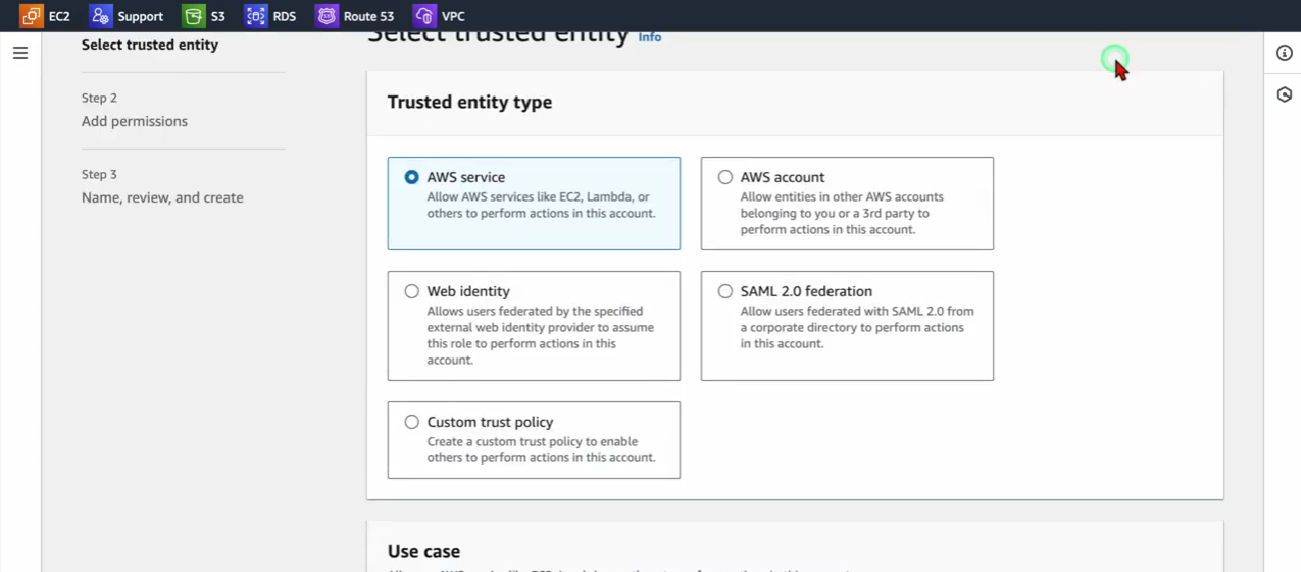
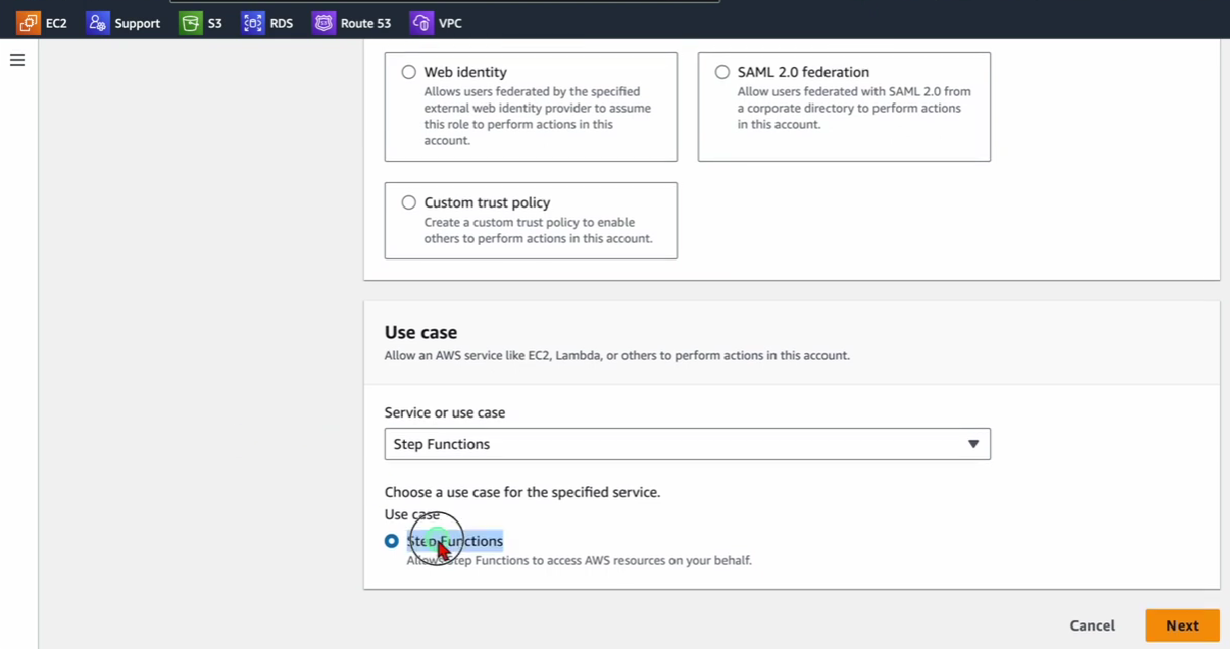
Select Step Functions as the AWS service use case.
Attach required policies based on your workflow integrations (e.g.,
AWSLambdaRole,AmazonSNSFullAccess, orAWSBatchFullAccess).Ensure CloudWatch permissions are attached so Step Functions can create log streams (e.g., CloudWatch Logs access).
Configure Logging Settings:
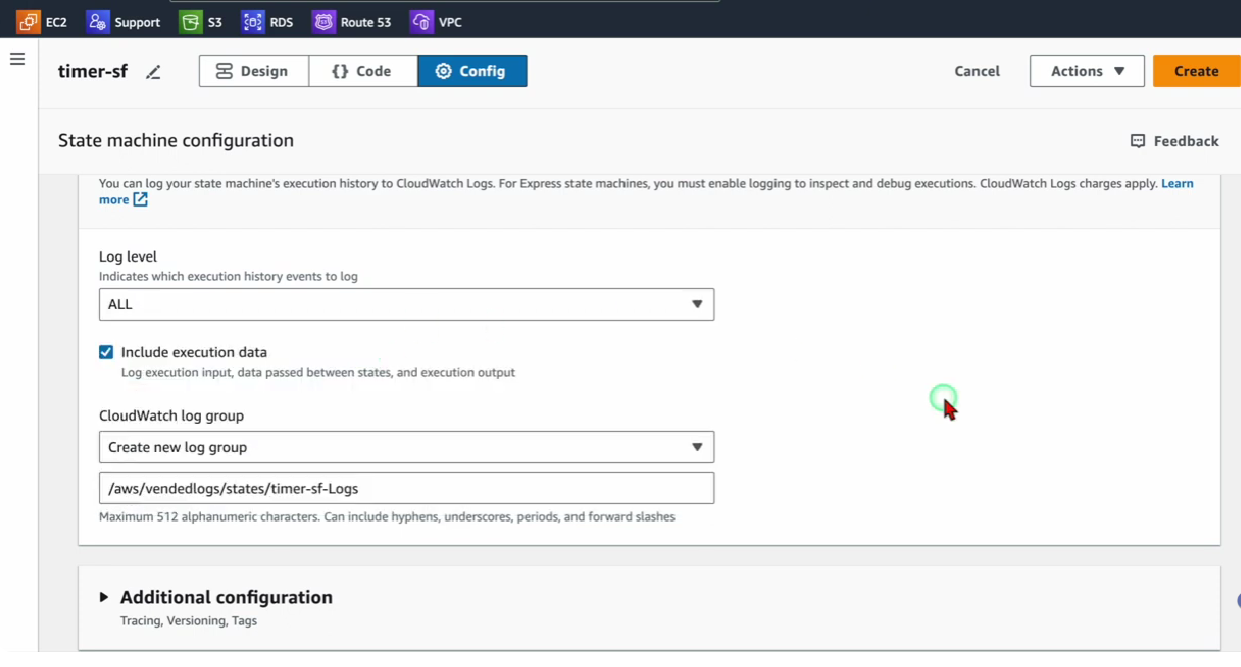
When configuring a State Machine, select Standard as the workflow type.
Set CloudWatch Logs level to ALL (to record all state transitions) or ERROR (to log only failure events).
Step 3: Build 1 – Build a Basic Timer Workflow (Wait & Succeed States)
Learn how to accept dynamic JSON parameters and delay execution using the Wait state.
[Start] ──> (Wait for Timer) ──> (Success) ──> [End]
1. State Machine Definition:
Set
StartAtto your initial state, e.g.,"Wait for Timer".Define the
Typeas"Wait"and reference dynamic seconds from the execution input using"SecondsPath": "$.timer_seconds".Set the
Nextstate to"Success"withType: "Succeeded".
2. Execution & Inspection:
Choose Start Execution and pass a JSON input payload:
{
  "timer_seconds": 15
}
Observe the visual workflow graph:
Blue: Currently executing state (in progress).
Green: Successfully completed state.
Red: Failed state.
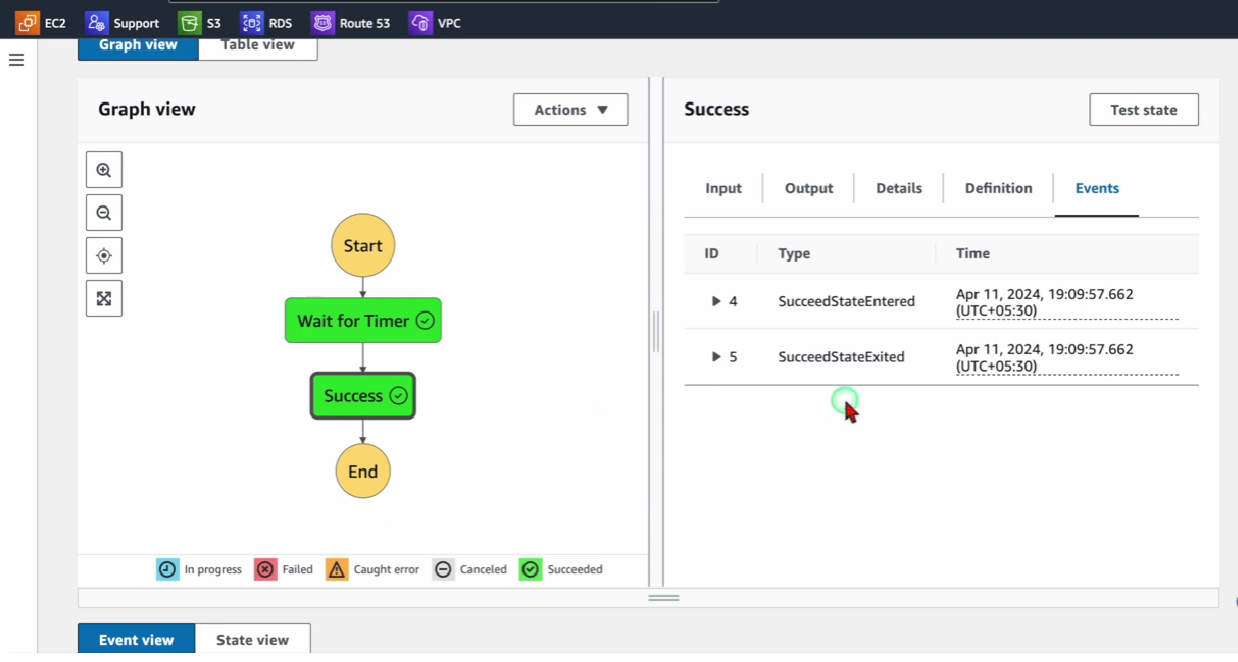
- Check CloudWatch Logs to verify state entry and exit events.
Step 4: Build 2 – Integrate External Services (Wait State + SNS Notifications)
Create another workflow by publishing an email notification via Amazon SNS after a dynamic delay.
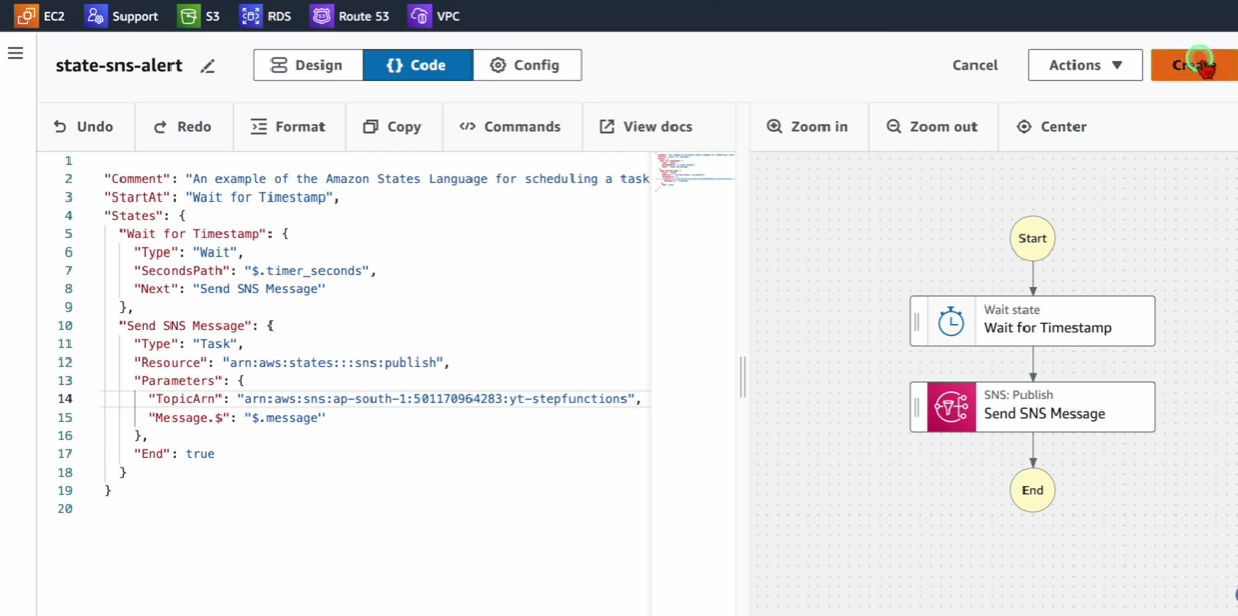
[Start] ──> (Wait for Timestamp) ──> (Send SNS Message) ──> [End]
1. Setup Amazon SNS:
- Create a Standard SNS Topic (e.g.,
Step-Functions-Demo).
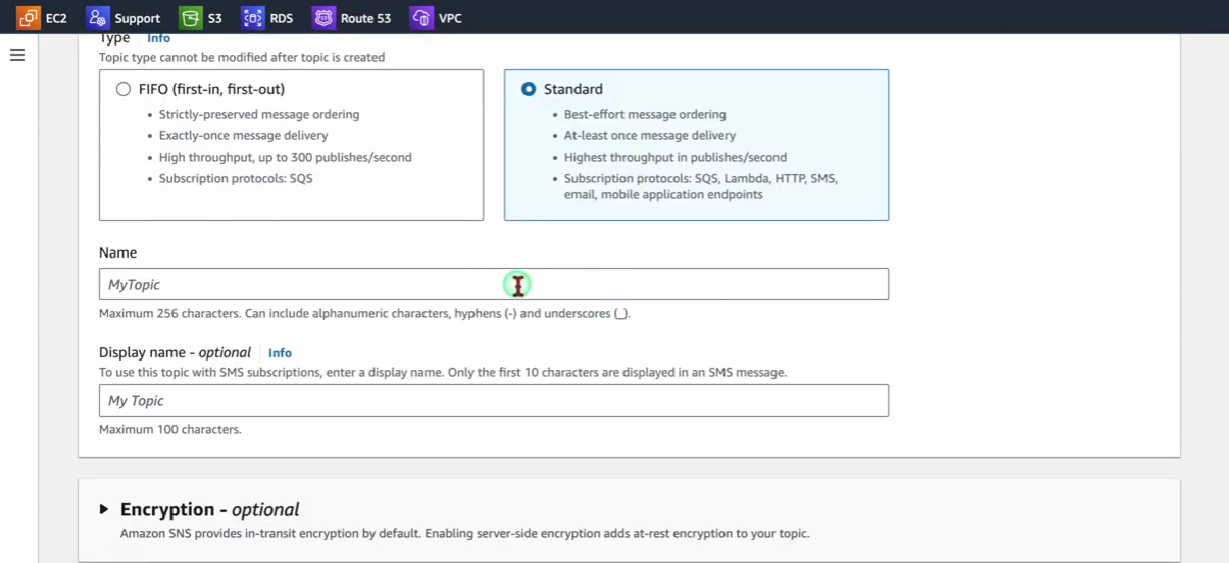
- Create an Email Subscription, log into your inbox, and click Confirm Subscription.
2. Define the State Machine:
Wait State: Pauses execution based on
"$.timer_seconds".SNS Task State: Uses the API action
arn:aws:states:::sns:publish. Pass your SNS Topic ARN and map the message body dynamically using"$.message".
Execution Payload:
{ "timer_seconds": 15, "message": "Step Function execution completed successfully!" }Verification: After 15 seconds, the workflow transitions to the SNS task and delivers the exact message payload directly to your email inbox.
Step 5: Build 3 – Master Task Patterns (Request-Response vs. Sync Polling)
Understand how Step Functions interacts with long-running asynchronous jobs, such as AWS Batch.
Pattern A: Request-Response (Default)
Step Functions triggers the target service API (
batch:submitJob) and immediately transitions to the next state without waiting for the job to complete.Risk: If the downstream Batch job fails later, Step Functions has already moved to success, leading to inaccurate status reporting.
Pattern B: Sync Polling (.sync)
Append
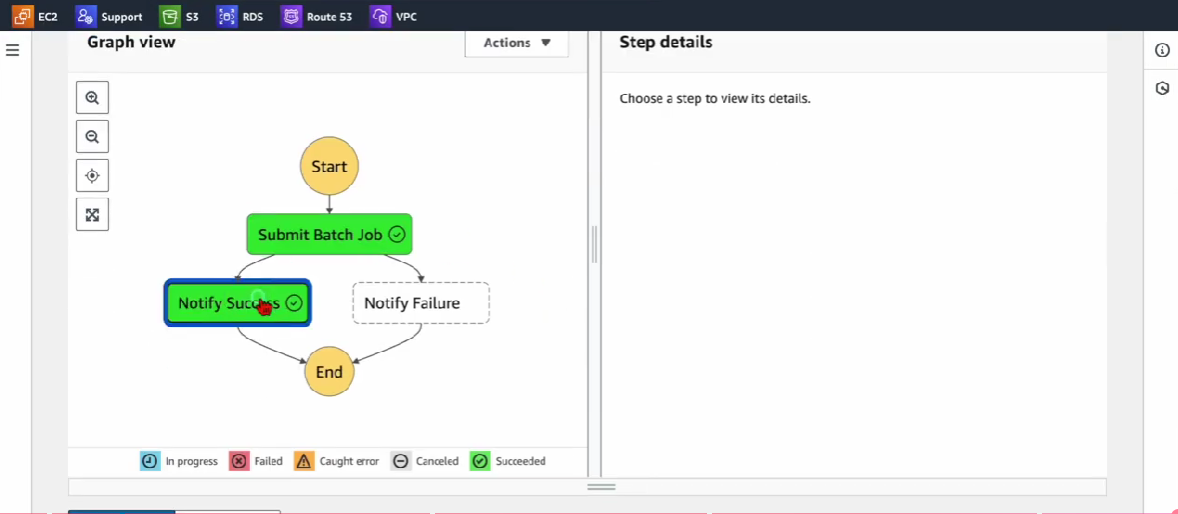
.syncto the resource ARN:arn:aws:states:::batch:submitJob.sync.Behavior: Step Functions pauses execution and automatically polls the underlying job status until it reaches
SUCCEEDEDorFAILED.Outcome: If the job succeeds, it routes to
NotifySuccess; if it fails, it catches the error and routes toNotifyFailure.
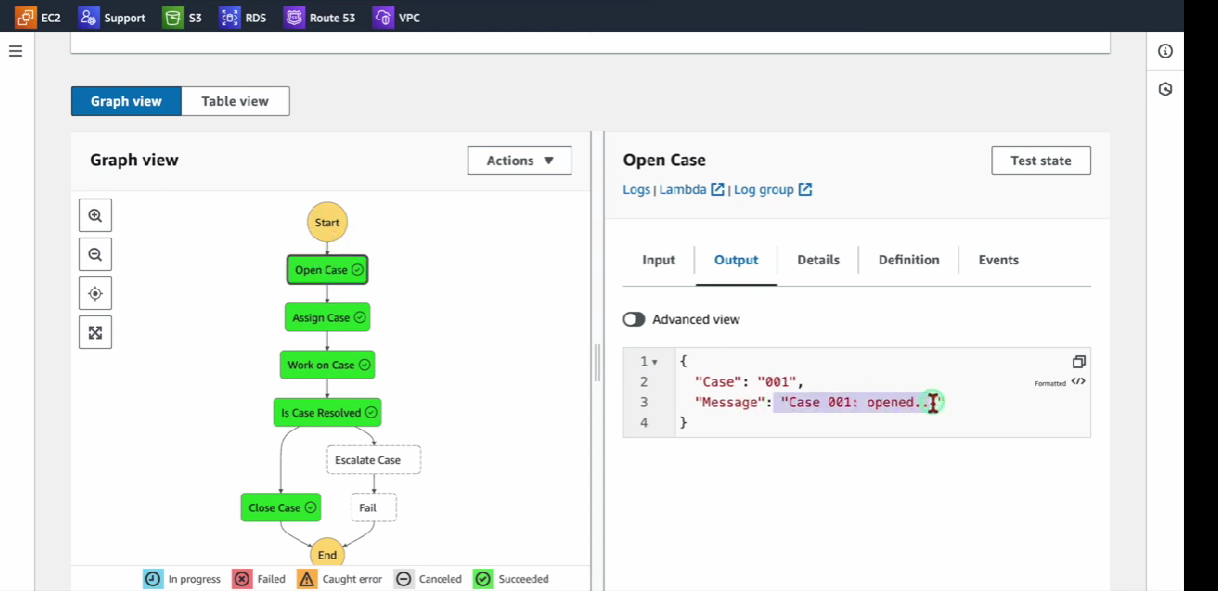
Step 6: Build 4 – Build an Advanced Call Center Workflow (Lambda & Choice States)
Orchestrate multiple AWS Lambda functions with conditional branching (Choice state) to simulate an automated case resolution pipeline.
                 ┌──> (Close Case) ──> [Success]
                 │
(Is Case Resolved?)
                 │
                 └──> (Escalate Case) ──> [Fail]
Deploy Microservice Lambda Functions (Node.js runtime):
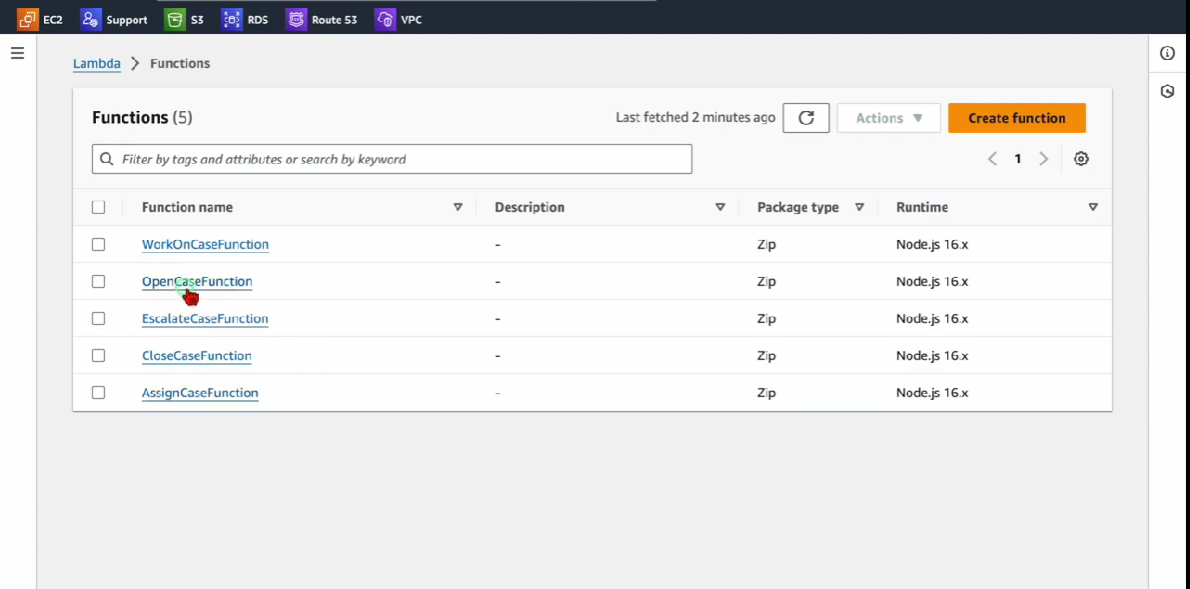
OpenCaseFunction: Generates and logs initial case status.AssignCaseFunction: Assigns the open case to a support agent.WorkOnCaseFunction: Processes the case details.CloseCaseFunction: Marks the case as resolved.EscalateCaseFunction: Escalates unresolved cases to Tier 2 support.
Define Workflow Logic & Choice State:
Chain
OpenCase\(\rightarrow\)AssignCase\(\rightarrow\)WorkOnCase.Use a Choice State (
Choice) to evaluate the output ofWorkOnCase:If
Status == "Resolved", route execution toCloseCase.Otherwise, route to
EscalateCaseand transition to aFailstate.
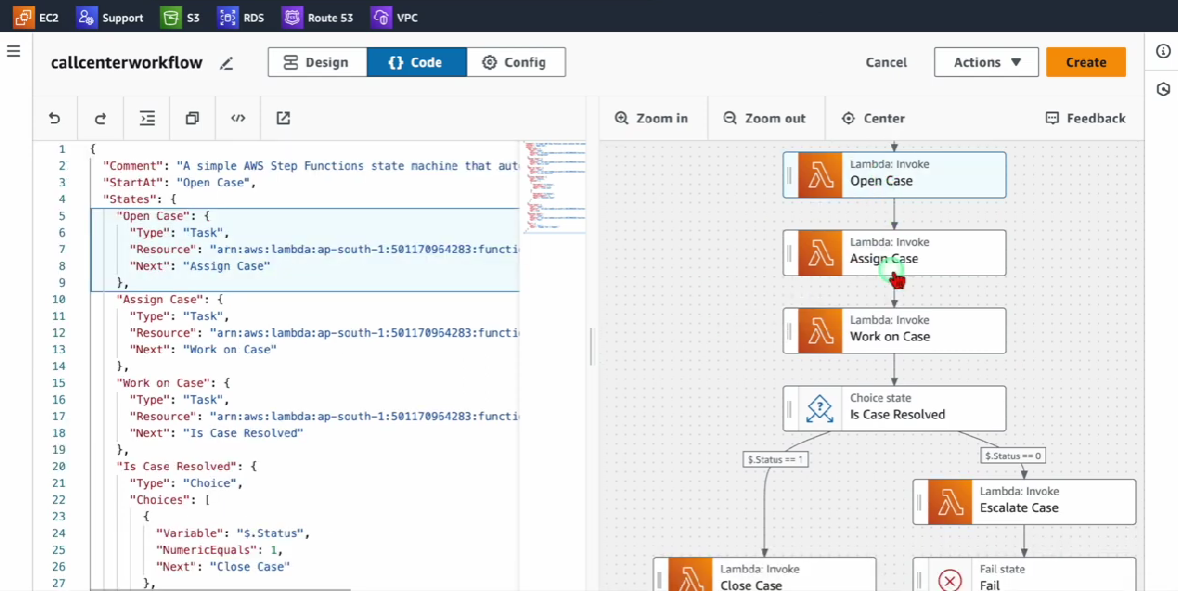
Execute and Test Branching:
Pass an input event payload containing a
case_id:{ "case_id": "CASE-1001" }Inspect the visual execution tree to verify how input/output JSON payload data passes between Lambda functions and routes conditionally through the Choice state.